
YouTube can hide comments containing words you choose. Build a list above, copy it, and paste it into the Blocked words box in YouTube Studio.
Building…
Built from live ratings when you loaded this page — not a file kept somewhere and forgotten. The Open as a URL link is stable, so a bot can fetch a fresh list on restart instead of shipping a copy that goes out of date.
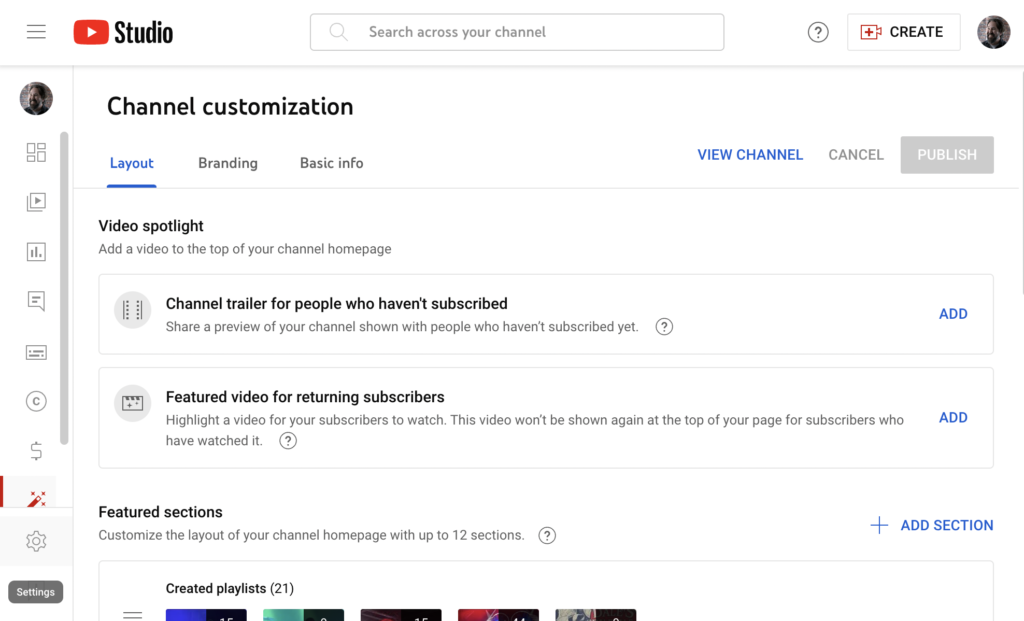
To begin, log into your YouTube channel and select the Settings (gear) menu from the left navigation in YouTube Studio.
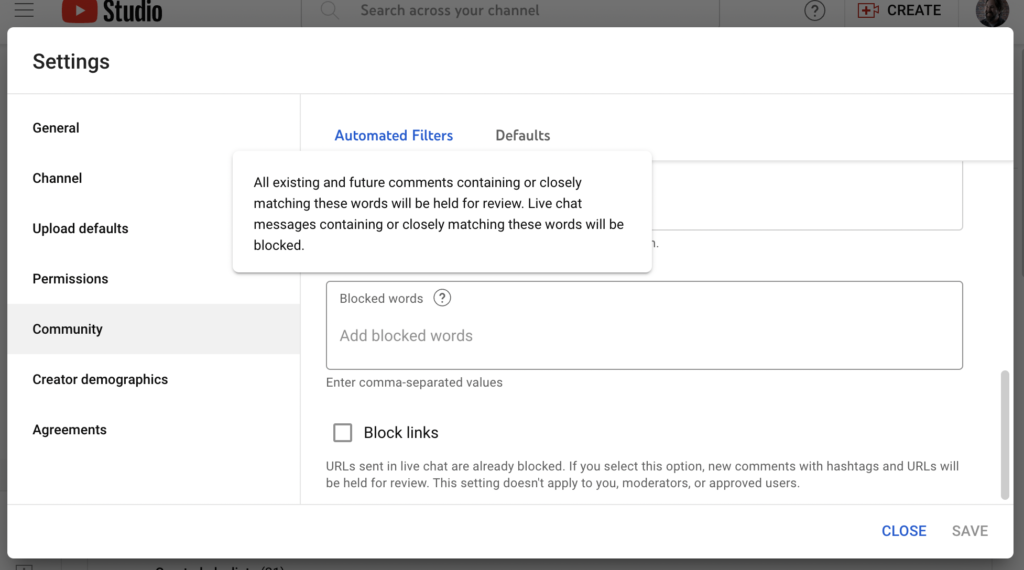
Next choose “Community” from the settings menu that appears on the right.
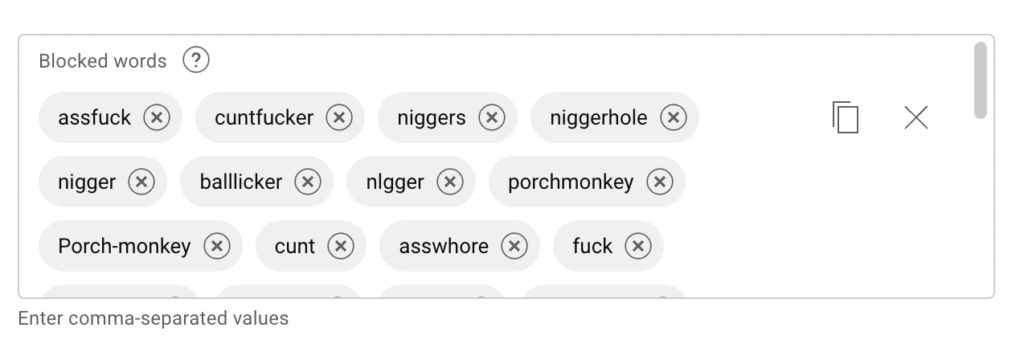
You’ll see each of the words added as pictured above. Click the “Save” button at the bottom right of the page to commit the change to your YouTube Channel settings.
Once you have done this, all existing and future comments containing (or closely matching) these words will be held for review. Live chat messages will likewise be blocked.
Choose Comma separated above and paste the whole list into the Blocked words box at once. Remember to save — YouTube does not save that box on its own.